
Zapier Integration
The Vibes integration for Zapier connects the Vibes platform to thousands of apps in Zapier's ecosystem—no code required.
This guide walks you through connecting Vibes to Zapier and building a Zap. Note that the Vibes capabilities you wire up here must already be configured in the Vibes platform.
Before you beginMake sure you have Vibes Public API credentials and at least one company_key you can access. If you do not have credentials, contact your Vibes Mobile Engagement Services (MES) Lead.
What you can do
The Zapier integration exposes one trigger, three searches, and five actions:
| Type | Name | What it does |
|---|---|---|
| Trigger | New subscriber | Fires when a Person opts in to a Vibes subscription list |
| Search | Find Person by MDN | Looks up a Person record by mobile phone number |
| Search | Get subscription status | Checks whether a Person is subscribed to a subscription list |
| Search | Get acquisition campaign | Returns full details of an acquisition campaign |
| Action | Add acquisition participant | Adds a Person to an acquisition campaign |
| Action | Trigger event-triggered message | Fires an event to activate an event-triggered campaign |
| Action | Unsubscribe Person by MDN | Removes a Person from a subscription list by phone number |
| Action | Update person | Updates the mobile phone or custom fields on a Person |
| Action | Issue incentive code | Issues an incentive code from a pool to a recipient |
Integration Setup
Step 1: Confirm your prerequisites
Before connecting Zapier to Vibes, confirm you have:
- A Zapier account (sign up free)
- Vibes Public API credentials: username and password with access to at least one company in the Vibes platform
- Your Company Key: find it on your Vibes Account Profile page as "API Company Key"
- Any subscription lists, acquisition campaigns, event types, or incentive pools you plan to use already configured in the Vibes platform
If you are missing any of the Vibes-side configuration, contact your Vibes MES Lead.
Step 2: Add Vibes to your Zap
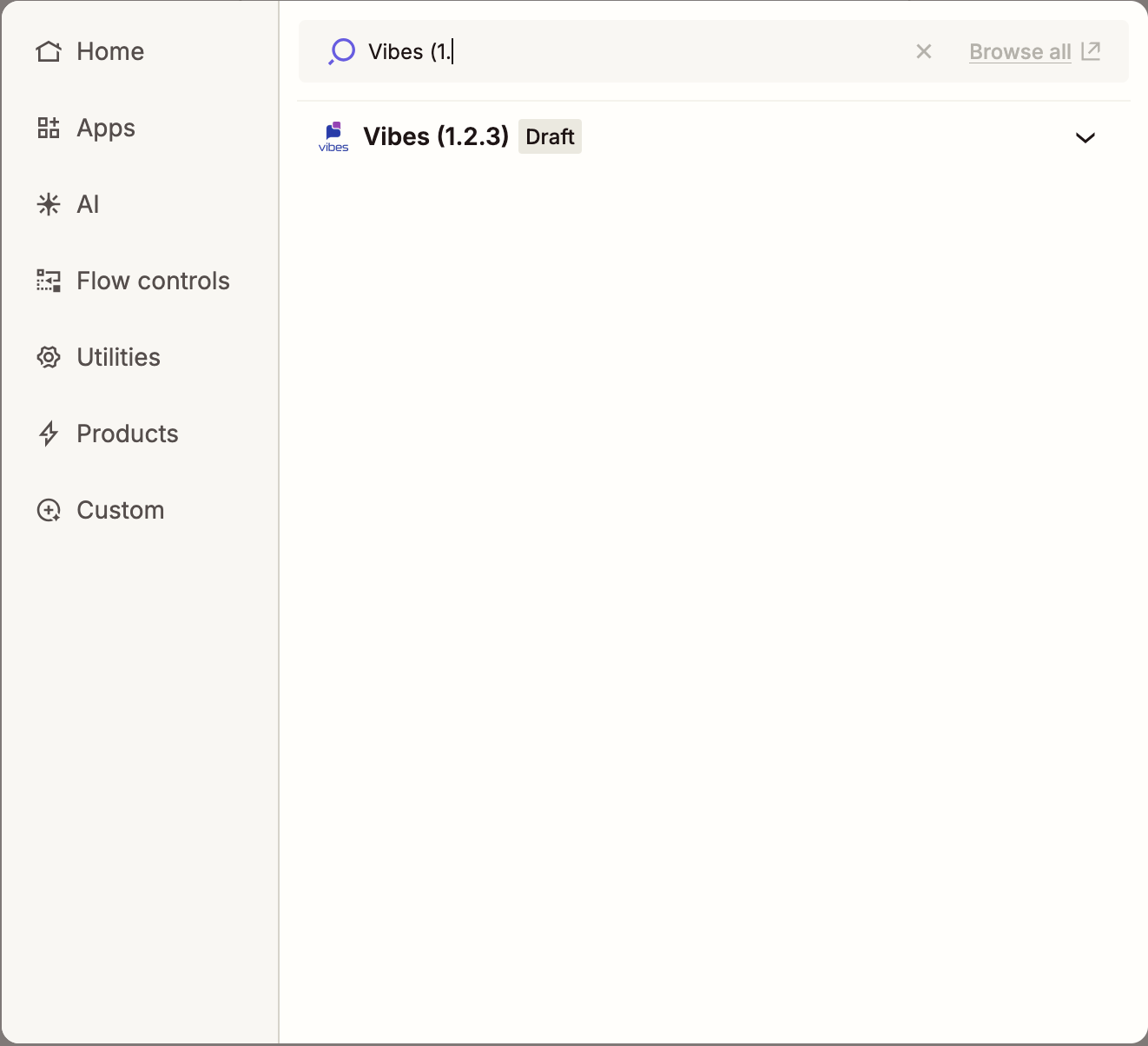
In the Zap editor, add a new step and search for Vibes. Select the Vibes app, then pick the trigger, search, or action you want to use.
Step 3: Connect your Vibes account
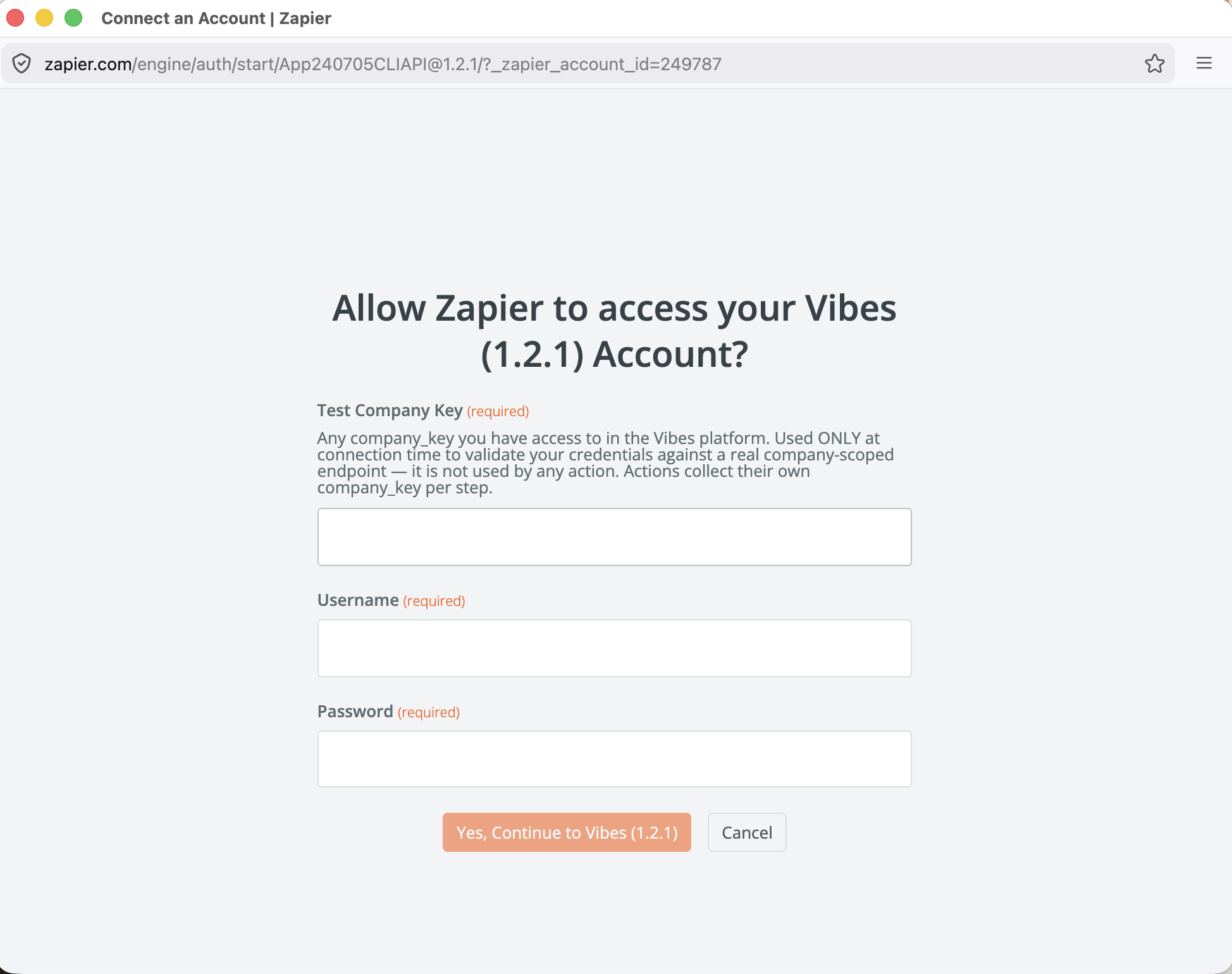
- Click Sign in to Vibes. A pop-up window will open.
- Enter your Vibes API Username and Password.
- Enter a Test Company Key. This can be any company key you have access to; Zapier only uses it once at connect time to validate your credentials. Each action in your Zap will collect its own company key.
- Click Yes, Continue to Vibes.
If the credentials are valid, Zapier returns you to the Zap editor with the account connected. The connection label will display your Vibes username so you can tell multiple connections apart.
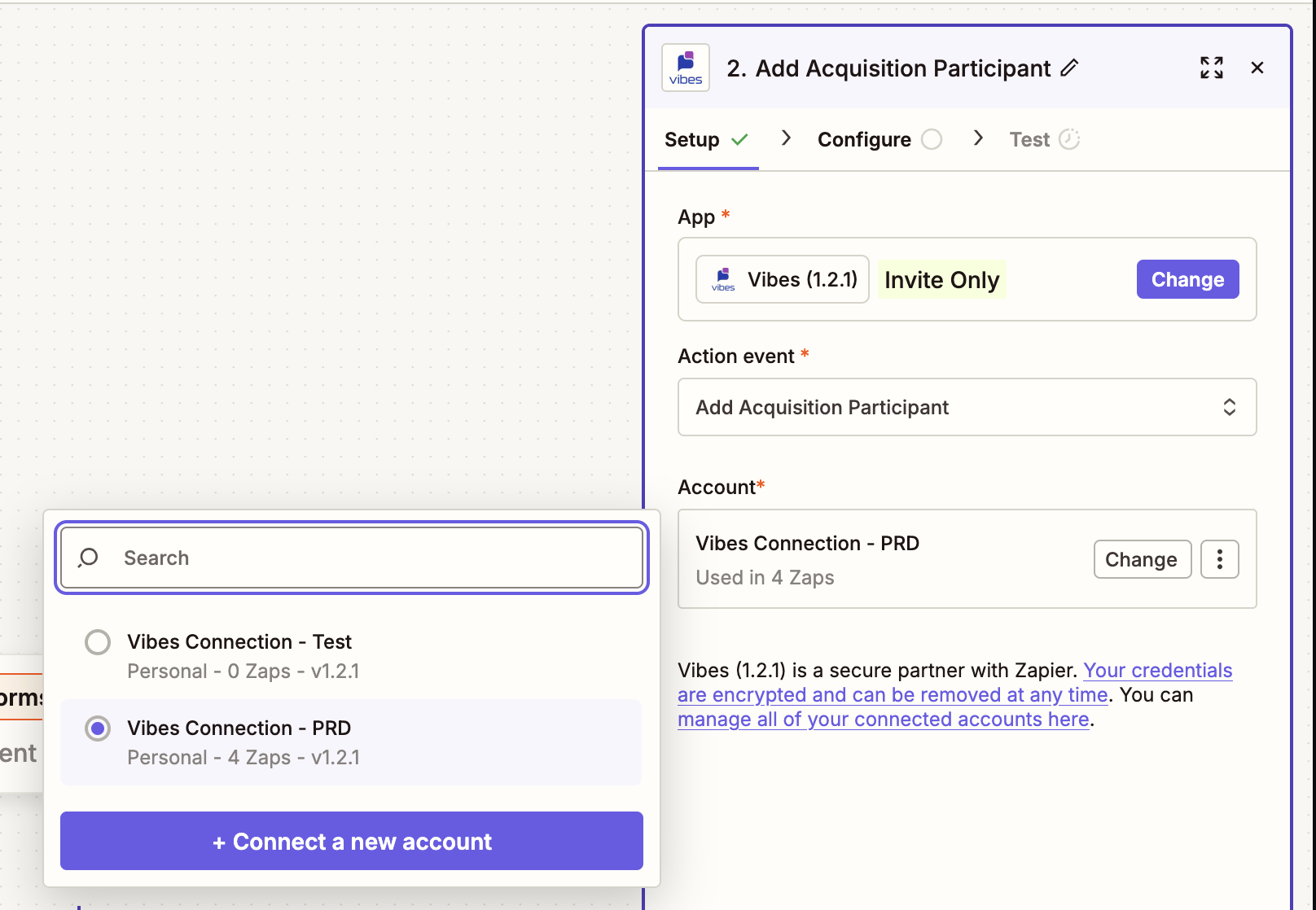
ImportantIf you manage messaging for multiple companies under a single set of API credentials, you only need one Vibes connection in Zapier. Each step asks for its own company key, so a single connection can drive Zaps across many companies.
Step 4: Configure the step
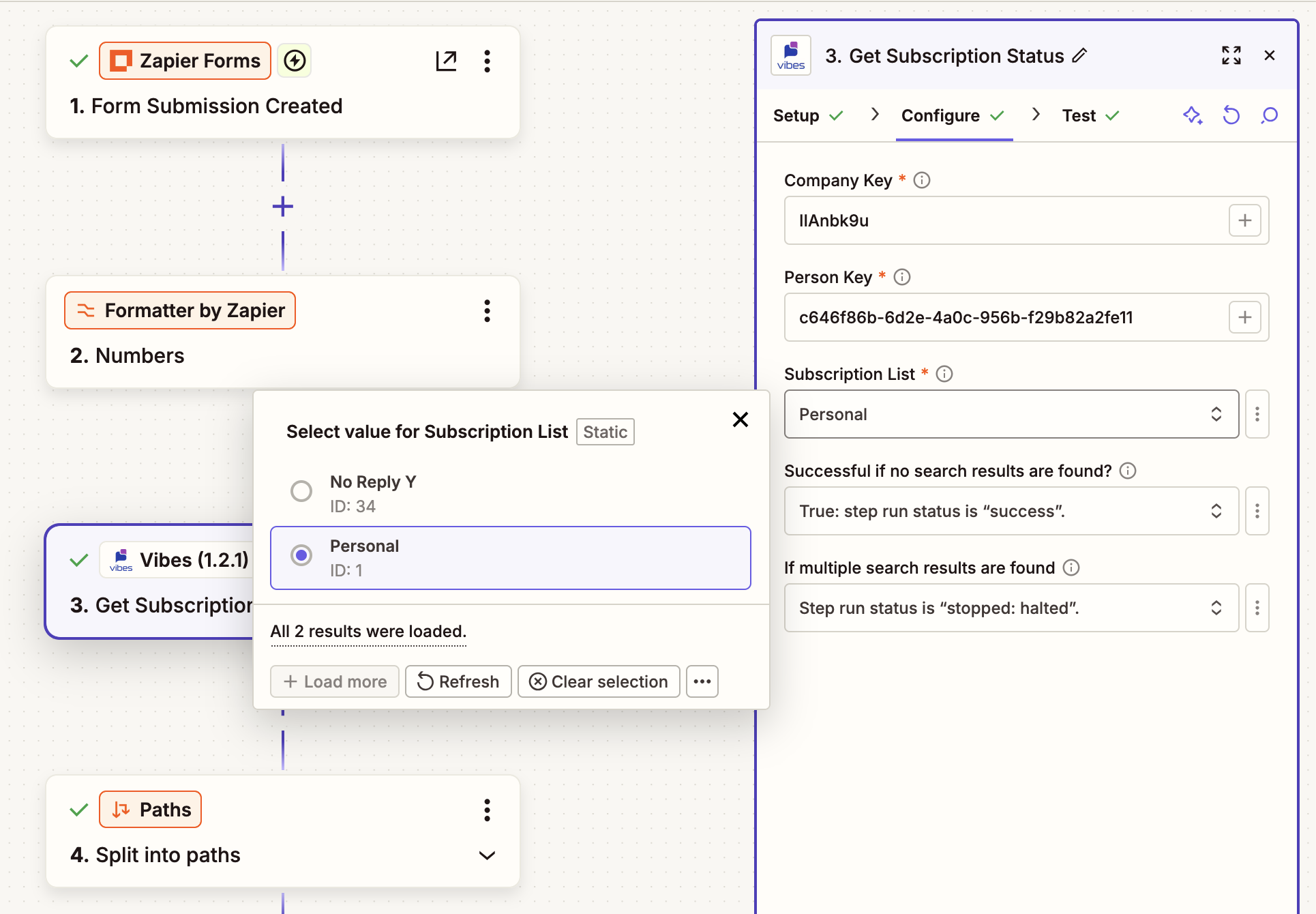
Each Vibes step asks for the fields described in trigger, searches, or actions below. The subscription list, acquisition campaign, and incentive pool fields are dropdowns populated from your Vibes company. You can pick from the list, or paste an ID directly if you know it.
Step 5: Test your Zap
Use Zapier's Test step button on each Vibes step. Tests call the live Vibes API.
What to know:
- Read-only steps (searches) are safe to test repeatedly
- Any actions will produce real results in the Vibes platform; use a test Person or a phone number on your team for initial testing
- The New subscriber trigger uses a synthesized sample at test time because Vibes does not retain historical subscription opt-in events; real subscription events flow through once the Zap is live
Zaps
Trigger
New subscriber
Fires whenever a Person opts in to a Vibes subscription list. This is a real-time webhook (the Vibes subscription_added callback). Events arrive within seconds.
ImportantWhen a Zap using this trigger is enabled, the integration will automatically register a subscription_added callback ensuring delivery directly to the Zap. When the Zap is disabled, the integration will cancel the subscription_added callback.
Fields
| Field | Required | Description |
|---|---|---|
| Company key | Yes | The Vibes-issued company key that owns the subscription list. |
| Subscription list | Yes | Pick from the dropdown of subscription lists in your company, or paste a subscription list ID. |
Output
Each subscription opt-in event includes the person ID, external person ID, subscription list ID, opt-in date, and a unique event ID. Use these in downstream Zap steps to record opt-ins in your CRM, kick off a welcome flow, or update internal dashboards.
Searches
Use a search step to look up a value in Vibes mid-Zap. For example, to retrieve a person key before updating the Person, or to confirm a Person is still subscribed before sending a follow-up.
Find Person by MDN
Looks up a Person by mobile phone number.
Fields
| Field | Required | Description |
|---|---|---|
| Company key | Yes | Your Vibes-issued company key. |
| Mobile phone | Yes | Mobile phone number in E.164 format (for example, +13125551234). |
Output
Returns the person ID, person key, external person ID, MDN, and Person URL. If no Person matches, the search returns no results. Chain a Filter step or enable "only continue if a Person was found" to handle that case.
Get subscription status
Checks whether a Person is subscribed to a specific Subscription List.
Fields
| Field | Required | Description |
|---|---|---|
| Company key | Yes | Your Vibes-issued company key. |
| Person key | Yes | The Person record's Vibes-issued person key. Use Find Person by MDN first if you only have a phone number. |
| Subscription list | Yes | Pick from the dropdown or paste a subscription list ID directly. |
Output
Returns subscription details if the Person is subscribed, or no results if they are not.
Get acquisition campaign
Returns full details for an acquisition campaign by ID.
Fields
| Field | Required | Description |
|---|---|---|
| Company Key | Yes | The Vibes Company Key. |
| Acquisition Campaign | Yes | Pick from the dropdown or paste an Acquisition Campaign ID directly. |
Output
Returns the acquisition campaign's description, type, status, start and end dates and URL.
Actions
Add acquisition participant
Adds a Person to an acquisition campaign. Vibes performs the opt-in confirmation flow from there.
Fields
| Field | Required | Description |
|---|---|---|
| Company key | Yes | The Vibes-issued company key that owns the acquisition campaign. |
| Acquisition campaign | Yes | Pick from the dropdown or paste an acquisition campaign ID directly. |
| Mobile phone | Yes | Mobile phone number in E.164 format. |
| External person ID | No | Identifier from your external system. Useful for linking the Vibes Person record back to a record in your CRM. |
| Custom Fields | No | Name/value pairs to set on the Person. See Working with custom fields. |
Output
Returns the person ID, person key, person URL, participation date, expiration date, and status. The status is PENDING while Vibes awaits opt-in confirmation, or SUBSCRIBED once the participant confirms. If the phone number is malformed or the person is already subscribed to the campaign, the action fails.
Trigger Event-Triggered Message
Sends an event to Vibes that activates a configured event-triggered campaign. For example, sending an order confirmation text when an e-commerce order is placed.
Fields
| Field | Required | Description |
|---|---|---|
| Company key | Yes | The Vibes-issued company key that owns the event-triggered campaign. |
| Event type | Yes | Must match the Event Type configured on the event-triggered campaign in the Vibes platform. (For example, purchase, signup.) Event types are case-sensitive. |
| Recipient MDN | Yes | Mobile phone number of the Person who should receive the message, in E.164 format. |
| Event data | No | Name/value pairs merged into the event payload. Used for merge tokens in the campaign message. (For example, order_total, tracking_url.) |
| Event ID | No | Caller-supplied ID for idempotency and tracking. If omitted, Vibes generates one. |
ImportantThe top-level Recipient MDN field always wins. If your Event Data mapping happens to include a key named
mdn, the recipient MDN value is the one that is sent to.
Output
Returns the event ID — the value you supplied in the Event ID input field if provided, or a Vibes-generated ID if you left it blank. Use it in downstream steps to correlate the campaign send back to the source event.
Unsubscribe Person by MDN
Removes a Person from a subscription list using their phone number.
Fields
| Field | Required | Description |
|---|---|---|
| Company key | Yes | The Vibes-issued company key that owns the subscription list. |
| Mobile phone | Yes | Mobile phone number in E.164 format. |
| Subscription list | Yes | Pick from the dropdown, or paste a subscription list ID directly into the field. |
Output
If the phone number is not in Vibes, the step fails with "Person not found". If the Person exists but is not subscribed to the list you targeted, the step fails with "No active Subscription found". Use Zapier's step error-handling settings if you would rather treat these as a no-op.
Update Person
Updates fields on an existing Person record in the Vibes Mobile Database. Useful for keeping Vibes in sync when a record changes in your source system.
Fields
| Field | Required | Description |
|---|---|---|
| Company key | Yes | Your Vibes-issued company key. |
| Person key | Yes | The Vibes-issued person key of the Person to update. Get this from Find Person by MDN. |
| New mobile phone | No | Set to null to clear the phone number on the Person record. Vibes does not support changing the phone number to a different value. Omit to leave unchanged. |
| Custom fields | No | Name/value pairs to set or update. See Working with Custom Fields. |
At least one of New mobile phone or Custom fields must be provided.
Output
Returns the updated Person record as it currently exists in the Vibes Mobile Database. You cannot update phone number on an existing Person record but you may remove it by setting the value to null. Attempts to update the phone number or other update failures will cause this action to fail.
Issue incentive code
Issues an incentive code from a pool to a recipient. This is typically used for loyalty rewards, promotions, or one-time offers.
Fields
| Field | Required | Description |
|---|---|---|
| Company key | Yes | The Vibes-issued company key that owns the incentive pool. |
| Incentive pool | Yes | Pick from the dropdown, or paste an incentive pool ID directly into the field. The pool must have issuance enabled in Vibes. |
| External issuee ID | Yes | Identifier from your system for the Person receiving the code (loyalty ID, customer number, and so on). |
| Referring application reference ID | Yes | Tracking reference from the system that triggered the issuance (order ID, event ID, and so on). Used to correlate codes back to their source. |
| Referring application | No | Name of the calling system. Defaults to splat if not provided. |
Output
Returns the issued code and pool. Use the Issued Code in a follow-up step. For example, pair this action with Trigger event-triggered message to deliver the code to the customer's phone.
Formatting tips
Working with phone numbers (MDN)
Every Vibes step that takes a phone number expects E.164 format: a +, the country code, and digits only. No spaces, dashes, parentheses, or extension suffixes.
| Accepted | Not accepted |
|---|---|
+13125551234 | (312) 555-1234 |
+447911123456 | 312-555-1234 |
13125551234 (missing +) | |
+1 312 555 1234 (spaces) |
If your upstream data source stores numbers in a different format, add a Formatter by Zapier step before the Vibes step: Numbers → Format Phone Number → E.164. Numbers that cannot be parsed will cause the Vibes step to fail with "invalid MDN".
Working with custom fields
Several Actions accept a custom fields input. This is a name/value list. Type the field name on the left, the value on the right, and click Add for each additional field.
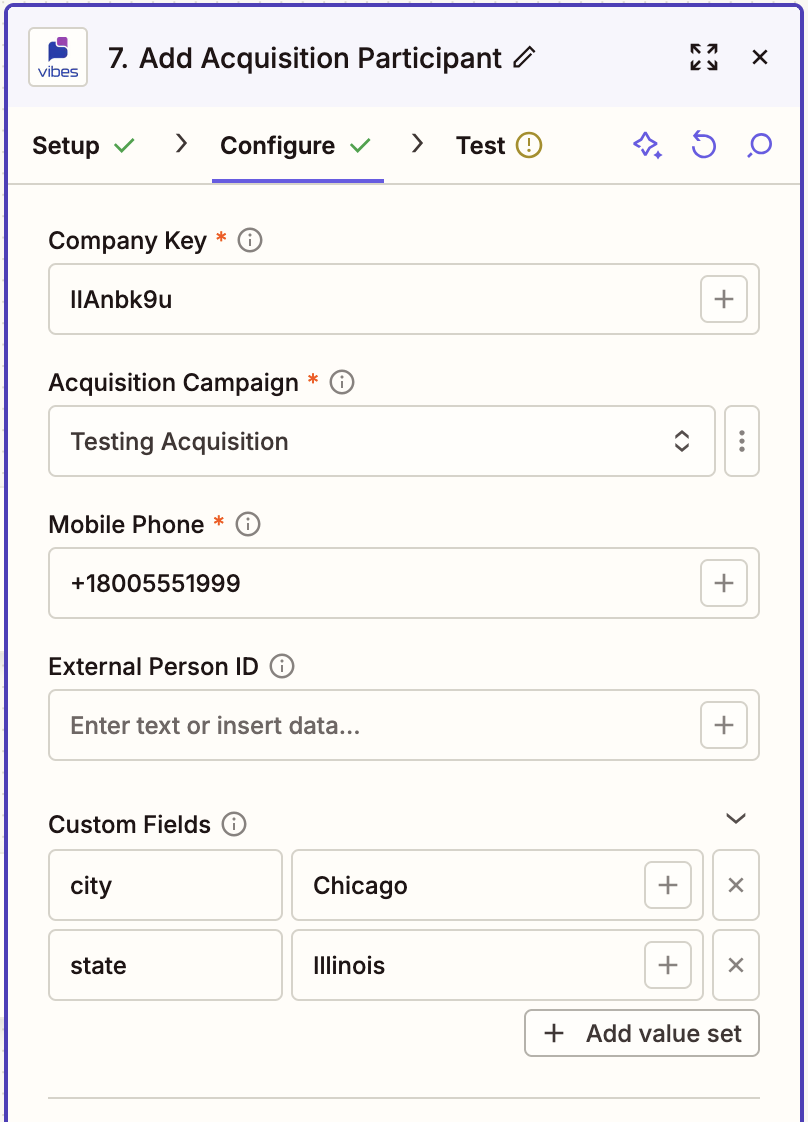
Formatting notes:
- Names must match Vibes: The field name (left side) must exactly match a custom field name configured for the company in the Vibes platform. Field names are case-sensitive.
- Values are strings: The value (right side) can be any string. Trailing whitespace is preserved (useful for opaque IDs); fully-blank values are dropped.
- New custom fields require Vibes setup: Custom fields that do not exist in Vibes will cause the action to fail with a validation error. Ask your Vibes MES Lead to create them first.
- If you do not need custom fields, leave the section empty: Custom fields are optional on every action that offers it.
Common use cases
New customer in your CRM → Add to an acquisition campaign
Trigger on a new contact in your CRM and use Add acquisition participant to start the Vibes opt-in flow. Map the CRM contact's phone to mobile phone and their CRM record ID to external person ID so you can link the two systems.
Order placed → Send an order confirmation text
Trigger on a new order in your e-commerce platform and use Trigger event-triggered message to send a purchase event. Pass order_total, order_number, and tracking_url as event data so the configured Vibes event-triggered campaign can use them as merge tokens. Set event ID to the order ID so duplicate webhooks do not double-send.
Phone number updated in your CRM → Keep Vibes in sync
Trigger on a contact update in your CRM. Use Find Person by MDN with the old phone number, then chain Update Person with the person key from the search and the new phone number in New mobile phone.
Loyalty milestone hit → Issue a code and text it to the customer
Trigger on a loyalty event from your loyalty platform. Use Issue incentive code to pull a code from the appropriate pool, capture the issued code output, then chain Trigger event-triggered message with a reward_earned Event that passes the code as event data. Configure a Vibes event-triggered campaign on reward_earned to deliver the message.
Troubleshooting
"Sorry, your credentials are invalid"
- Confirm the username and password work directly at vibescm.com.
- Confirm the Test company key is one you have access to. The auth check hits the subscription lists endpoint for that company. If you cannot view subscription lists for it in the Vibes platform, you will not pass this check.
- If you pasted the password, retype it instead. Leading or trailing whitespace sometimes carries over from clipboards.
"Person not found for MDN"
The phone number is not currently in the Vibes Mobile Database for this company:
- Verify the number is in E.164 format. See Working with phone numbers (MDN).
- Verify the Company Key is correct; Vibes Person records are scoped per company.
- An opt-out removes the Person record. If the customer previously opted-out, they must opt back in through a Vibes opt-in flow.
"No active subscription found for this person on the specified list"
The Person exists in Vibes but is not subscribed to the subscription list you targeted. Use Get subscription status to verify subscription state before unsubscribing in sensitive flows.
"Invalid custom fields"
One of the custom field names you provided is not configured in the Vibes platform for this company. Field names are case-sensitive. Ask your Vibes MES Lead to create the missing custom fields.
Throttled / rate-limited errors
The Vibes Public API limits traffic to 100 requests per second per company. Bursts that exceed the limit are retried automatically by Zapier; no action needed in most cases. For persistent throttling on a high-volume Zap, add a Delay by Zapier step to space out requests.
A dropdown is empty
The subscription list, acquisition campaign, and incentive pool dropdowns populate from the company key field directly above them:
- Confirm the company key field is filled in.
- Confirm the company has subscription lists, acquisition campaigns, and/or incentive pools configured in the Vibes platform.
- You can paste an ID directly into the field even when the dropdown does not surface it.
Event-triggered message step succeeds but no message is sent
The Vibes Public API accepts the event and returns success even if no campaign is listening. Check:
- The Event Type spelling exactly matches the event type on the campaign. This field is case-sensitive.
- The campaign is Active in Vibes. Paused campaigns receive events without sending.
- The recipient is subscribed to a subscription list the campaign targets.
If the Zap step succeeds but no text arrives, the issue is on the Vibes campaign configuration side. Contact your Vibes MES Lead to verify campaign setup.
Frequently asked questions
Which Vibes environments are supported?
North America (public-api.vibescm.com) only.
Can one Zapier connection drive Zaps across multiple Vibes Companies?
Yes. Each step asks for its own company key, so a single connection that has access to multiple companies can drive Zaps for all of them. If you have separate credentials per company, you can also add multiple Vibes connections in Zapier and pick the connection per step.
Why does every step ask for a company key instead of inheriting it from the connection?
Asking per step keeps Zaps explicit about which company they target and lets a single connection drive automations across multiple companies without ambiguity.
Is there an action to create a subscription list, acquisition campaign, or event-triggered campaign?
No. Subscription lists, acquisition campaigns, event types, and incentive pools are configured in the Vibes platform. The Zapier integration uses them but does not create them. Campaign configuration includes message copy, opt-in language, and compliance review that belongs in the Vibes platform.
Can I send a one-off SMS directly from a Zap?
No. Vibes is a campaign platform. Every outbound message is sent by a campaign configured in the Vibes platform. To send a message from a Zap, send an event with Trigger event-triggered message with an event type that matches a configured event-triggered campaign.
What happens if Zapier retries a step?
Most actions are safe to retry. Trigger event-triggered message is the exception: for strict idempotency, set event ID to a unique value from your source system (for example, an order ID) so Vibes can deduplicate.
Does the integration notify me when a Person unsubscribes?
Not in this release. The new subscriber trigger fires on opt-ins; an outbound "new unsubscriber" trigger is on the roadmap. Track opt-outs from your CRM or support tool side for now.
What's next?
- Configure the Vibes-side campaign, subscription list, event type, or incentive pool you plan to use with this integration. See the relevant Vibes guide on the Vibes Developer Platform.
- Review the Vibes Public API Reference for full field-level details on each underlying endpoint.
- For platform questions, contact your Vibes Mobile Engagement Services (MES) Lead.
- For Zap-editor or Zapier-account questions, contact Zapier Support.
- For issues with the integration itself, contact your Vibes account representative with the Zap ID, the failing step name, the time of the failure, and the error message Zapier displays.
Updated 2 months ago